Showing posts with label apps. Show all posts

Saturday, July 19, 2014

Evernote 101: Tagging and Emailing Into an Evernote Notebook

Last weekend, I began my crash course into Evernote inspired by Twitter friends on a Saturday morning chat. The purpose: figure out how to utilize Evernote at school.  On my first weekend, I learned how to Share Evernote Notes and Publish My Notes to a Blog.  This week I happened to be reading others' blogs and there were several I wanted to save to review again later.  So I did what I normally do...I emailed it, but this time not to my own inbox (which always seems to be overflowing with articles I want to save)...for this article, I mailed it to Evernote!  I am happy to say that I even learned how to file it in a specific notebook and give it a tag!!! I am thrilled with my accomplishment:)

Here's what I did:

To start, I needed to get my personal email upload address from Evernote, so I opened my app and clicked on my name in the upper left corner.


It opened the "Settings" and I scrolled down to  "Evernote Email Address".


When I opened the tab, I chose to copy the address to my clipboard (now, I wonder if I couldn't have just chosen the top option...not sure).


After pasting it in the first time, all I have to do now is type an "e" and Evernote Upload pops up in my address bar.


Now, when I want to send an article to Evernote, I can email the note directly into a specific notebook complete with a tag and a reminder.


How?  When I find an article I want to save, I choose to share it


via email.


After typing the title, I can put the note in a specific notebook by using the @ symbol.  To give it a tag, I use the "#" sign. 


Once I hit send, I can my note in the specified notebook


or when searching by the designated tag.


My UltiMaTe BiG QueSTioN and reason behind my exploration: How do I use Evernote with students and teachers at school? 

Well for me, Way #3:  I would definitely share this feature with students completing research projects. What an easy way to CuRAtE INfOrmATioN pertinent to a project! 

Saturday, July 5, 2014

Create your own Fireworks with ColAR

With kids that are grown, it can sometimes be a bit of a stretch to explain why you are sitting in the kitchen with a giant box of crayons when your hubby walks in and gives you that look, but with the ColAR App I had the perfect excuse and just in time for the 4th of July!!! ColAR was something I learned about from Leslie Fisher and it looked so cool that I had to try it out for myself.  So, I headed to the ColAR Mix website, 
scrolled down to find the holiday pack,
and printed out a blank coloring sheet with fireworks. 
I opened a fresh pack of Crayons and set to work (all for the sake of evaluating the app, of course).
Within minutes, I was finished coloring and ready to download the ColAR App from iTunes.
I opened the app and held my phone just above the finished page.
The coloring sheet immediately transformed from a 2D picture to a 3D, interactive image.  When I touched the rockets on the screen, they shot off into space and erupted into a beautiful fireworks show. Here's a short video showing the whole process and the fireworks:
ColAR has so many images, surely I can find at least one to use in my classroom:)

Friday, August 31, 2012

Favorite Find Friday: Silent Math Movie

The iPads have not yet arrived, but school is in full swing and we are harnessing the power of the students' cell phones.  In the first 10 days of the school year, we have used phones to communicate, create math tutorials, and assess understanding!!!  In preparation of the iPads' arrival, I have uploaded another project to the class website using a favorite app which was generously shared at Mobile 2012 by TechChef4U.  #MyFavFriday app, Vintagio, transforms any video captured on an iPhone or iPad into a period style movie, complete with special effects and music. Vintagio, previously known as Silent Film Director, can be used to create everything from a 20's style silent film to a 70's style home movie and everything in between.  It is quick and easy to use and allows for film editing, special effects, photos and images, transitions and insertion of title cards.

In the Silent Math Movie project, the students will create a math tutorial without words.  I am so excited to see what the kids will do - their first project with iMotion HD was fantastic!  I'm including the task, sample video, and rubric just as the students will see it.

Task:
"After the depression of the 1890s, immigration jumped from a low of 3.5 million in that decade to a high of 9 million in the first decade of the new century. After the 1880s, immigrants increasingly came from Eastern and Southern European countries, as well as Canada and Latin America. By 1910, Eastern and Southern Europeans made up 70 percent of the immigrants entering the country."  - Eye Witness to History

The earliest American films, which appeared around 1895, were primarily a working-class pastime. Because they told stories without words, they appealed to the large, immigrant population in the United States.  A picture that did not talk was particularly appealing to people who did not speak or read English. - History Matters

Your task is to go back in time and create a movie "showing" how to solve a specific mathematical problem using the  Vintagio app. The challenge?  You must work without words in groups of 2 to create a 2 - 5 minute film that will serve as an easy to understand Math Tutorial for your classmates.  Have fun with this project; part of the appeal of silent films were the creativity directors used in lighting, props, costumes, and movements of the actors.  This is your opportunity to let your creativity shine!
Image From Chaplin Museum

Sample: Math Tutorial


Rubric:
Click for larger view

Giveaway:
Want to try #MyFavFriday app, Vintagio, in your classroom?  MacPhun, LLC has generously donated a free code for me to share!  Enter via the Rafflecopter widget below:
a Rafflecopter giveaway

Monday, August 27, 2012

Made 4 Math: Stop Motion Animation

     We are two weeks into the new school year and our iOS projects are in full swing.  Students are utilizing cell phones and iPads daily to elaborate upon and reconstruct content covered in class.  They are in essence creating their own version of the Interactive Student Notebook (ISN or INB), except their's are Digital Student Notebooks (DSN) :D  Students have to truly synthesize the information in order to effectively "teach" it and I certainly believe "teaching" helps them remember.  In fact, the National Training Institute (1999) stated that learners retain 5% of what they hear in a lecture, 10% of what they read, 20% of material presented both audibly and visually, 30% of what is demonstrated, 50% of what is discussed in groups, 75% of what they practice, AND 90% of WHAT THEY TEACH.
     Last week, my friend, Kathleen, introduced me to the coolest app used in this week's #Made4Math project, iMotion HD.  (She had students use it to summarize human migration research conducted in World History; I had students use it to create a math tutorial. We loved it so much that we highlighted it at The Classroom Cafe too!)) Here's a quick overview...the Dual Enrollment students created stop motion tutorials to review concepts covered in class and to re-teach others who may not have had a clear understanding.  Each group of students (I would recommend no more than 3 in a group - 5 was too many!) chose from several problem types.  Then, they utilized iMotion HD  to make their animations.
The details of the project including the task, a sample student created video, and the rubric are included for you to take and make your own:
StopMotion Math Task
Stop Motion animation debuted long ago in films.  The first instance of a stop motion film was seen in The Humpty Dumpty Circus in 1897.  It is often used to show objects moving on their own.  In a stop motion film, the animator makes inanimate objects "come to life" by moving the objects through a scene.  The films are created when a series of interlocking pictures are played together through a scene.  When all of the pictures play it looks as though the objects are actuall moving (kind of like a flip book). Your task is to assume the role of a stop motion animator and create a math tutorial film for our online course resources using the iMotion HD app.
Sample Student Video


Rubric
Click to View
The projects turned out great!  The free app was so easy to use.  I observed the students talking more about the curriculum content than the mechanics of making the movie. Yay!

Sunday, July 8, 2012

Project Snapguide: Making a Math Tutorial

Snapguide App
Did I tell you the iPads are coming?  It is official!  Our IT director and administration blessed the 1:1 iPad initiative for the 2012-2013 school year:D  So, I am busy this summer revamping lessons to include the NeW, BEaUTiFul, ShiNy, Oh-sO-PoWerFuL technology.  While I am not usually a "project" kind of girl, I have defined several activities I would like for students to complete and for lack of better terminology, I am calling the activities "projects".   I am busy defining the tasks, creating tutorials, and making rubrics to go with each one.

I have just completed an assignment in which students will use the Snapguide app to create a math tutorial for an assigned problem type.  Here is what I came up with:
Task:  According to a Harris Interactive poll in the Spring of 2012, three in ten Americans own an e-reader. With the rise of Nooks, Kindles, and iPads, large textbook companies are moving quickly to electronic versions of content specific e-books.  This is causing Educational Content Writers to adjust how they communicate information.

Your task is to assume the role of a 21st century content writer and create an easy to understand Math Tutorial using the Snapguide app for the Textbook of Tomorrow.  The tutorial that follows details your task and provides a step-by-step tutorial on how to use Snapguide.  You will upload your completed project via the submission form posted on the class website. 

                   Tutorial: 
Click here to see tutorial

                    Rubric: 
    
                 Click here to view
I'll post all three project components on the class website and provide a place for the students to upload the projects.  I have the rubric scored for possible points being 5, 3, or 1 for each category.  Is it okay to score like this (counting by 2's)?  This is my first project in FoREvEr and of course, I am hoping they ALL make 20 out of 20.  So, please provide feedback, especially if you see that I am forgetting something important for their success!

Saturday, April 28, 2012

Apple TV and Student Created Videos


I installed Apple TV into my classroom this week.  I was so excited about adding a component that would allow students to be an integral part of the teaching and learning process by making it easy for students to share their work via the "mirroring" application. The students were able to use their phones or one of the iPads in the classroom to be actively engaged in the lesson. I am still planning for 1:1 iPad integration next year and am beginning to organize lessons to include a variety of apps.  This week, I introduced Dropbox, Screen Chomp, and ShowMe. We had several students out due to sports playoffs.  It was so easy to upload their assignments and Study Guides via a shared folder in Dropbox. The students loved the ease of the app and actually used it for an English assignment later in the week.  With Screen Chomp and ShowMe, "early finishers" created content tutorials for their peers. After we watched the students' creations via Apple TV, I added QR code links to the videos and posted them on practice problems hung around our classroom.  Students were able to use the video tutorials as a helpline as needed. As hoped, the students found the screen castings to be especially helpful.  During one class period, a few students actually passed an iPad around the room to watch the videos to jog their memory for a Bell Ringer activity.  I can certainly see the value in having student created videos.  It is a real and relevant addition that allows students to get assistance anywhere and at any time.    


Thursday, April 12, 2012

Mobile 2012: Happy Geeky T-Shirt Day!

Happy Geeky T-Shirt Day!

I am here at Mobile 2012 learning so much about effective integration of  iPods, iPads, netbooks, laptops, tablets, web tools, and phones into the K-12 classroom.  Today is Geeky T-Shirt Day, so I thought I would share (via a QR Code on my shirt) a few of my favorite apps that I use in the classroom and at home and podcasts that I listen to regularly.
Apps for the Classroom: Splashtop, Socrative, Rover, Cinch, Skitch, Evernote, iTunes U, Skitch
Apps for Fun: HootSuite, Flipboard, Echofon, Buffer, Pinterest
Podcasts/Vodcasts: Classroom 2.0 Live, Two Tech Chicks, Learning in Hand, TechChef4U

Saturday, April 7, 2012

1:1 iPads in High School Math

     Spring Break is about to come to a close and I am excited to go back to work.  I have spent the break learning through blogs, webinars, podcasts, and twitter.  I have so many ideas I want to try before my students leave for summer break - many with iPads and Apple TV.
Rover App
     I have had 1:1 computers in my classroom for the past several years and the students have used them to complete projects, assignments, and reinforce ideas.  While I am an avid Apple fan (I camped out to get the new one :D ), I have been hesitant to migrate to iPads due to the lack of flash capabilities.  I teach dual enrollment math.  All of the students' assignments are online and most require Adobe Flash Player.  However, over the break I investigated Rover.  While Rover has mixed reviews with noted concerns regarding bandwidth, the two web-based services we use worked fine.  
     Excited about the possibilities, I have generated a mind map about the various ways iPads could be integrated into the current classroom structure.  
Created with bubbl.us
This preliminary list is by no means exhaustive.  In fact, I know I am only scratching the surface; it doesn't include project based learning activities, vodcasting, blogging, or wikis. 
     I have access to three iPads and I am installing Apple TV this weekend.  I plan to begin experimenting Monday.  If it works as I hope it will, I will just need to convince IT to let us try 1:1 iPads next year.  Fingers crossed! 

Sunday, March 11, 2012

Credit Recovery + Edu 2.0 = Success


     For the past few months, I have been working to devise a credit recovery plan for 57 students at our school.  This is the first time our principal has asked me to work to incorporate this during the school year.  Typically, we run a first semester summer school in June each year; however, with the high stakes End of Course tests looming in the students near future, we knew we could not wait until summer to remediate. 
     I explored several options, for self-paced web-based options.  While we could afford it this semester, we knew that as a long term solution, the online learning modules were beyond our budget.  So, we tapped current staff members to teach at least one credit recovery class after school and on weekends. 
     I am teaching geometry. :)  My class is compromised of students who not only need to make-up a math credit, but also an English or science during the same time slot.  The kids are not sure which class they should attend to meet the mandatory attendance policy.  They need help in two subjects, yet how can they be in two places at the same time?  It is a challenge "sharing" students.
     To better serve the students, I began to explore online options that I could manage and that were in our budget (FREE!). I looked at a couple of options for online classroom management and decided to try Edu 2.0, an e-learning system a friend had shared with me almost a year ago.  At the time, I had no real immediate need to use it.  Now, I find it to be a perfect solution. 
     With Edu 2.0, the geometry students are able to access online learning modules that I have developed to learn anywhere and at anytime.  Students are able to enter the password protected accounts to view relevant videos and notes and then take quizzes to assess their learning. 
edu20 05b Assignment Types
     I have structured it so that the quizzes replace paper based homework assignments.  While there are many options for the question types, e.g. multiple choice, free response, true false, fill in the blank, I have decided to use fill in the blank.  With fill in the blank questions, students can't just guess a multiple choice answer or click true/false.  The questions also allow for pictures to be inserted.  I have searched for this for years and Edu 2.0 is the first cost-free, ad-free, online quiz application that have found that allows a teacher to include pictures.  We even have a paid version at our school that restricts question types to "words only".  Geometry is based heavily on illustrations, so the ability to include drawings into the online questions was a non-negotiable when I was evaluating various online platforms.  The quizzes have customizeable features that relate to feedback, number of attempts, and recording the best score earned.
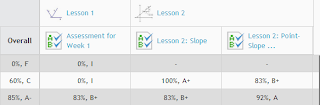
     Edu 2.0 grades the assignments and records the results in an online gradebook easily accessible by teachers and students.  This is great in that I don't have to remember which online platform I used to administer the assignment.  In the past, I have used a variety of webtools to assess student learning which makes it challenging to record grades, because if I wait too long, I can't remember which tool I used for the assignment!  In Edu 2.0, I am still able to  use a variety of tools, but all feedback is stored in one place. 
     I have been using Edu 2.0 for the past several weeks and I am extending its use to my traditional classroom and my weekend ACT prep class.   I will continue to work to create more self-paced options for credit recovery.  I think its applications and collaborative tools are perfect for self-paced, blended, or teacher directed classrooms.  I would love to know how others are incorporating Edu 2.0.  Please share ideas!

Saturday, March 10, 2012

Top Five Ways to Use Evernote in the Classroom

 I spent my Saturday night watching an archived webinar on Evernote in the Classroom by Bill Stites' via Classroom 2.0 Live's archives.  While I have used Evernote personally, I have never shared it with students mainly because I did not realize the full capability of the free organizing tool.  At Bill's school, Montclair Kimberley Academy, the teachers and students are using Evernote regularly for everything from sharing class notes to collaborating on projects. As I heard the many examples, it was easy to generate a list of the Top Five Ways to use Evernote in the Classroom!
1.  Students are able to email directly to Evernote.  The email capabilities are perfect for creating ePortfolios or using the app to organize scanned documents like worksheets and study guides. 
2.  Pictures can be imported to better illustrate an idea or just remember what was written on the whiteboard.  Coupled with Skitch, students are able to add captions and annotate directly on photos.  As a bonus, the text in the photo (even without Skitch) is "searchable"!
3.  Evernote's recording capabilities, allows students to record lectures or personal explanations and reflections.
4.  Students can create to-do lists to remember homework assignments or complete a multi-step projects.
5.  With Evernote's web clippling capability, students find it easy to organize useful articles, charts/graphs, and videos for research projects even from their iPad.
I thoroughly enjoyed the webinar!  From it, I learned Evernote is a note-taking/organizing app that can and should be integrated in the classroom. 

Sunday, April 10, 2011

Digital Images in the Classroom

Making up abut 65% of the population, visual learners absorb and recall information best by seeing. These learners think in pictures and create mental images to retain information. They learn best by seeing information through the use of maps, charts, and pictures. At the Mobile 2011 conference, Ty Richardson helped us imagine a classroom in which students get the "big picture" through a series of little pictures designed to scaffold learning.

Photographs can enhance learning experiences while fostering creativity, but just how does one go about incorporating Teacher-Made and Student Created Multi-media in Instruction? Ty recommends starting with iPhonography, utilizing the iDevice's built in camera. These devices provide great pictures that can be used across the curriculum.
Images enhance understanding. Images provide context clues. Images evoke emotion. Images allow students to interact with content.

Ty shared many ideas and apps to help jumpstart the creative
process.

Ideas and Recommended Apps:
LANGUAGE ARTS:
- Comic Strip+: Allows students to take photos and tell their stories via comic books. Students can give a visual representation of content.
- StoryRobe: Allows students to take photos or video and add audio to an original story. Every student can now be a published author!
- Motivation: Students can take their own photos and created motivational posters.
- Other recommended apps: Pages, story kit, sonic pics

MATH:
-Rulerphone: Camera app that allows students to take measurement of any object they can photograph. Students include "business card" to provide scale.
- Protractor: Allows student to take a photo of an object whose angle needs to be calculated. App provides angle measured and complimentary and supplementary angles.

SCIENCE:
- imicroscope: Allows students to magnify and take pictures under the microscope
- SciSpy: Students can take pictures of flowers, insects, and wildlife and upload them to the scientific community (for classification and research)

FOREIGN LANGUAGE:
- Wordlens+: Allows for translation of any sign from English to Spanish and vice versa
- Google goggles: Free translation
- Flash card Creator+: Take pictures and provide voice over to various objects. Create flashcards based upon pictures taken. Can be used in any subject.

BEST of the REST:
- Quickmark: Read and create bar codes and QR codes
- Skype: Virtual career day, distance learning and collaboration
- Sekaicamera+: virtual scavenger hunt
- Star Walk: AR app for reviewing constellations

Need more ideas?

Apps
- Hipstamatic
- Instagram:
- Camera+
- Genius Camera
- Pano: Stitches multiple pictures together
- Filterstorm: Photoshop for iPhone
- 100 Cameras in 1: HDR
- Geotag Photos
- Breadcrumbs
- Mover+: Allows for easy photosharing
- Photosync
- Timelapse
- Slow shutter

Tyrichardsonphoto.com
Big pixel.tumblr.com
Flickr.com/bigpixel

Photojojo.com - owlebubo: wide photolens that functions as a macrolens
Zoom lens
Romotamatic- allows for remote control of iPhone camera
Pocket Microscope for iPhone from amazon
Splashtop