Showing posts with label Evernote. Show all posts

Saturday, July 19, 2014

Evernote 101: Tagging and Emailing Into an Evernote Notebook

Last weekend, I began my crash course into Evernote inspired by Twitter friends on a Saturday morning chat. The purpose: figure out how to utilize Evernote at school.  On my first weekend, I learned how to Share Evernote Notes and Publish My Notes to a Blog.  This week I happened to be reading others' blogs and there were several I wanted to save to review again later.  So I did what I normally do...I emailed it, but this time not to my own inbox (which always seems to be overflowing with articles I want to save)...for this article, I mailed it to Evernote!  I am happy to say that I even learned how to file it in a specific notebook and give it a tag!!! I am thrilled with my accomplishment:)

Here's what I did:

To start, I needed to get my personal email upload address from Evernote, so I opened my app and clicked on my name in the upper left corner.


It opened the "Settings" and I scrolled down to  "Evernote Email Address".


When I opened the tab, I chose to copy the address to my clipboard (now, I wonder if I couldn't have just chosen the top option...not sure).


After pasting it in the first time, all I have to do now is type an "e" and Evernote Upload pops up in my address bar.


Now, when I want to send an article to Evernote, I can email the note directly into a specific notebook complete with a tag and a reminder.


How?  When I find an article I want to save, I choose to share it


via email.


After typing the title, I can put the note in a specific notebook by using the @ symbol.  To give it a tag, I use the "#" sign. 


Once I hit send, I can my note in the specified notebook


or when searching by the designated tag.


My UltiMaTe BiG QueSTioN and reason behind my exploration: How do I use Evernote with students and teachers at school? 

Well for me, Way #3:  I would definitely share this feature with students completing research projects. What an easy way to CuRAtE INfOrmATioN pertinent to a project! 

Sunday, July 13, 2014

Evernote 101: Publish To A Blog

Evernote, Evernote, Evernote!  Every where I turn someone seems to be talking about Evernote, but why? Yesterday was the day that I started my quest to figure it out and answer my UltiMaTe BiG QueSTioN: How do I use Evernote with students and teachers at school?

Let me back up even further...In 2012, I was on my treadmill (yes, that probably WaS the last time...) listening to Classroom 2.0 Live featuring Linda Yollis, a teacher of 3rd grade students in California.  The topic: blogging with students.  Let me state the obvious...she was so phenomenal that I still remember the conversation 2 years later!


Blogging?  In the vodcast, she stated that any class could blog, because blogging provides an opportunity to teach and practice quality writing (great for any content area and any grade level).  Blogging gives students an opportunity to produce quality posts for an authentic audience from around the world helping to build a global community.  By design, it provides
Image from Mrs. Yollis' Blog
opportunities for differentiation and it gets kids reading and writing about things that interest them (my mother-in-law, a retired librarian, says that this is critical).

So, what does this have to do with Evernote? Well, when researching ways to share a note in Evernote , I  found that you can publish from within Evernote to Postach.io, a blogging platform.  This is huge!!! I know of several teachers who have wanted to blog with students for some time, but the logistics of how and with what equipment has stalled the progress of the project.

In my mind this is Evernote to the rescue!!! Since you can use any device to add content to Evernote, students can add content to their blog from a computer, a phone, or anything else loaded with the Evernote app!  I had to give it a try...


So, I signed up for Postach.io and 


linked my Postach.io account to my Evernote account.


Postach.io asked if I was sure that I wanted to give it access.  (Don't worry, I can change my mind later if I decide not to use it.)


And then, poof...I was done!


I headed back to Evernote to tag the notes that I wanted to add to the blog as "published".  It was supposed to automatically publish to my Postach.io site, but...  


I guess I missed something.  So, I headed back to Postach.io and clicked the "pencil" to edit (though now, I wonder if I could have just hit the swirly arrows to sync...not sure.)


I then went to "Sources" and chose the notebook I wanted to share. The man on the video didn't say anything about selecting just one notebook, so I am not sure if it only possible to share from only one notebook in Evernote, but if so, consider naming it "Postach.io" or "Blog Posts", so that it is clear for students.
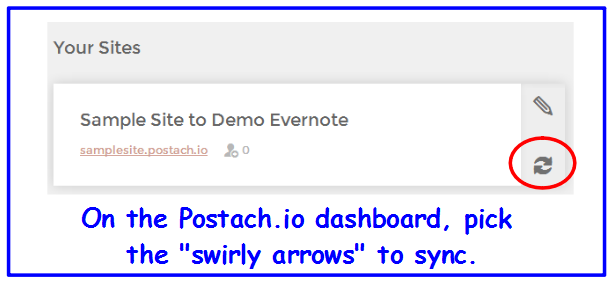
Final step, I went back to the Postach.io Dashboard and clicked the arrows beside the blog's name to sync.  Once Postach.io and Evernote are set-up, every note that is tagged as "published" will automatically appear on the blog  (without having to click the "swirly arrows")!   

So, Way #2 to use Evernote with students and teachers: PuBLiSH To A BloG!

Saturday, July 12, 2014

Evernote 101: How to Share Notes Using Evernote

I love summer, a time to think, reflect, and learn!  What can you learn? The possibilities are limitless...you just have to ask, "What do I want to learn today?" (kind of like Siri :)  Some days I know what I want to learn before my feet hit the floor and other days (like today) I'm inspired around mid-morning.

Today, it started with a #NT2t Chat (New to Twitter Chat) this morning where I met Rik Rowe and Dina Moati, who were talking about ways to squeeze all that you wanted to say into 140 characters and Evernote came up. Rik suggested sharing your Evernote notes via Twitter and my first thought was how do you do that?  Thus, the inspiration for "what I want to learn today...": the how-to's of Evernote, not because the web doesn't have tons of resources already on the subject, but because I am simply logging my journey.

I know, I just blogged about Evernote after ISTE, but it was a short post and there was so much more that I wanted to know! My UltiMaTe BiG QueSTioN: How do I use Evernote with students and teachers at school?  My answer..."I don't know...yet.", but I am embarking on a journey to figure it out. So, here I go...my first entry on using Evernote:

  • What is Evernote?
    • A Self-Syncing, Note Taking Tool Available for All of Your Devices: phone, computer, iPad, etc.
    • Cloud-based Utility (It's available anywhere even if you don't have the device that you originally typed your note on).
    • FrEE!!! (A teacher's favorite word!)

  • What Can You Use it For?
    • Quick Notes: shopping lists, pictures of receipts, links to resources, meeting notes, and images of brainstorming sessions.
    • Formatted Notes: Complete with Titles, Font Styles and Colors, Bullets and Numbered Lists, Checklists, Tables, Attachments like Photos and Voice Recordings (these go directly into Evernote when you are using the app on your phone or iPad) and Links to Useful Websites (use the "..." on the tool bar to create a dropdown menu to add the hyperlink)
    • Capture Business Card Info: Use your phone's camera to capture a business card and the information will sync directly into your contacts list.  
    • Reminders: Though it is not a management tool (it is a note taking tool), you can set reminders for time sensitive tasks.


  • Where Do the Notes Go and Are They Private?
    • The notes are in the cloud and this is great because this allows you to access your notes anywhere: work, home, or even the beach by logging into Evernote on a computer or launching the app on your phone or other digital device.
    • You can keep your notes private or choose to share them via Facebook, Twitter, LinkedIn, Email, or with a Link. (Remember...that was my question of the day that prompted this post.)


Here's what I learned...
start by choosing how you want to share.  I picked "link".


Evernote double checked that I meant to click share 
and gives me an option to change my mind after I actually share my note.


Then, it gave me a public link.  
This would be perfect for sharing meeting notes at work! 

Way #1 for answering my UltiMaTe BiG QueSTioN and the answer to "what I wanted to learn today": How to Share Notes in Evernote.  If you would like a copy of my notes for this post, here's my note.